
Iris Shaders is an open-source shader mod for Minecraft: Java Edition. It adds support for shader packs while keeping compatibility with many existing OptiFine shader packs. Iris also works with Sodium for optimized rendering and supports modern Minecraft versions through compatible releases.
What Is Iris Shaders?
Iris Shaders Minecraft is a Minecraft shader mod designed for Java Edition. It acts as a shader pack loader, allowing players to use shader packs that change how Minecraft renders lighting, shadows, reflections, water, clouds, and other visual effects.
The project focuses on shader support and compatibility with the wider Minecraft modding environment. It can load many shader packs made for the OptiFine shader format, while also supporting Iris-specific shader features.
Iris is client-side. This means the mod runs on the player’s Minecraft installation rather than being required on a multiplayer server. The visual changes come from the player’s client and shader configuration.
How Iris Shaders Works
The basic setup has three parts:
Minecraft provides the game environment. Iris loads and manages the shader pack. The shader pack controls the visual effects that appear in the game.
A shader pack does not replace Iris. Instead, Iris provides the system that loads and runs the pack.
Is Iris Shaders a Minecraft Mod?
Yes. It is a shader mod for Minecraft: Java Edition. The project extends Minecraft’s rendering system so users can load compatible shader packs.
Features of Iris Minecraft Shaders
Shader Pack Support
The main purpose is shader support. Iris is designed to work with many existing OptiFine shader packs and Iris-enhanced packs. This gives users access to a wide range of visual styles. Shader packs can change lighting, shadows, reflections, fog, water, skies, and other parts of the game’s appearance.
Compatibility can still vary between packs. A shader developer may use features that behave differently across Minecraft versions, graphics hardware, or Iris releases.
Minecraft Java Edition Support
Iris is designed for Minecraft: Java Edition. The current project information lists supported Minecraft releases from 1.16.5 onward, with compatibility depending on the available Iris build. Users should match their Iris version with their Minecraft version instead of installing a build at random.
Performance-Focused Rendering
Iris is built around modern rendering and works with Sodium. The official project states that Iris ships with Sodium for optimized rendering. Shader performance still depends on the shader pack and the computer. A demanding shader can place much more load on the graphics system than a lightweight pack.
Mod Compatibility
Many Minecraft mods can work with Iris, but rendering-related mods can require extra care. The official FAQ notes that some rendering modifications can conflict with shader rendering. A mod that changes the same rendering systems used by shaders may behave differently when a shader pack is active.
Shader Configuration
Iris gives users access to shader-related settings through Minecraft’s video and shader interfaces. The available options depend on the selected shader pack.
Different packs can provide different controls for:
Iris Shaders Compatibility
Compatibility depends on three main factors: Minecraft version, mod loader, and the shader pack. The current Iris project information lists Minecraft: Java Edition support across 26.3, 26.2, 26.1.x, 1.21.x, 1.20.x, 1.19.x, 1.18.x, 1.17.x, and 1.16.5. Available platforms currently include Fabric, NeoForge, and Quilt, with the project marked as client-side.
Iris Shaders Fabric
Fabric is one of the main platforms supported by Iris. The official FAQ states that Fabric support starts with Minecraft 1.16.5 and newer releases. A compatible Fabric installation can run Iris with the required compatible components. Current Iris releases also list Sodium as required content for specific builds. The exact required versions depend on the Minecraft version and the Iris release.
Iris Shaders NeoForge
NeoForge is also supported on newer Minecraft versions. The official project states that NeoForge support starts with Minecraft 1.21.1 and higher. Users should check the Iris release information before installing because loader and Minecraft version support can change between releases.
Iris Shaders Forge
Forge is not supported by the Iris project. The official FAQ states this directly. NeoForge and Forge should not be treated as interchangeable terms. If a setup uses Forge, users need to check whether another compatible shader solution fits that environment.
Is Iris Shaders Client-Side?
Yes. Iris is designed as a client-side mod. Current distribution information also identifies its supported environment as client-side. This means a player can use shader rendering on their own Minecraft client without installing the mod on a server.
Iris Shaders Download
Iris can be installed through the official installer or obtained through supported mod platforms. The official installer can install Iris and Sodium together. The project provides both a Windows executable and a universal JAR installer.
Download Iris Shaders
Choose a release that matches your Minecraft version and supported mod loader.
The official download page provides:
The project recommends checking the version before installation because each release targets specific Minecraft environments.
For More Information Visit Our Dedicated Download Page.
Iris Shaders Installer
The installer simplifies the setup process. First, users run it, select a Minecraft version, and start the installation. Additionally, the official installer handles Iris and Sodium together. Furthermore, the universal JAR can be used across supported platforms where Java is available.
Iris Shaders on Modrinth
The Modrinth project provides Iris releases with Minecraft version and platform information. Current listings include Fabric, NeoForge, and Quilt, with releases covering several Minecraft generations. Each release can have its own dependencies and compatibility requirements, so users should select the release that matches their setup.
Choosing the Correct Version
Before downloading a release, check:
For example, a release built for Minecraft 26.2 should not be treated as a generic file for every Minecraft version. Specific releases list their supported environment and required content.
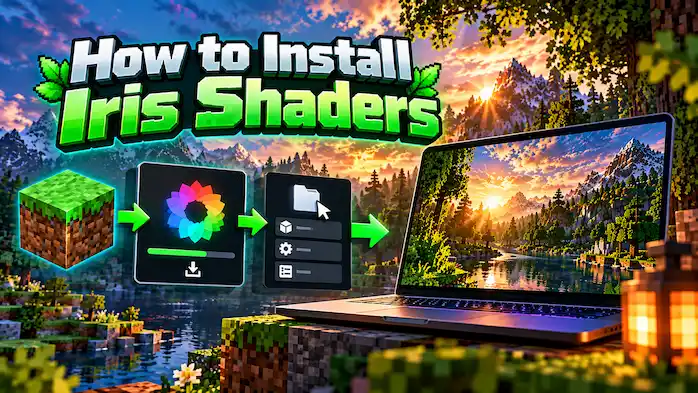
How to Install Iris Shaders
The installation process depends on the Minecraft version and loader, but the basic flow is straightforward.
What You Need Before Installing
Start with Minecraft: Java Edition and a compatible Minecraft version. Next, check the Iris release you plan to use. Make sure its loader and version match your Minecraft installation. You should also choose a shader pack that supports your setup.
Download the Iris Installer
Use the official installer or a supported mod platform. The official installer offers a Windows executable and a universal JAR. Select the Minecraft version that matches your installation.
Install Iris
First, run the installer and select the required Minecraft version. Next, the installer can install Iris and Sodium together. Finally, after installation, open the Minecraft launcher and select the profile created for the installation.
Add a Shader Pack
Once Iris is installed, obtain a compatible shader pack. Shader packs are normally provided as ZIP files. The file should remain in its supported format unless the shader developer gives different instructions. Place the pack in the Minecraft shaderpacks folder.
Enable Shaders
Launch Minecraft with the Iris installation. Open the video or shader settings and select the shader pack you want to use. The shader pack should load if it supports the installed Minecraft and Iris environment.
How to Use Iris Shaders
After enabling a pack, users can adjust the available shader settings. The exact options depend on the selected pack. Some packs provide detailed controls for shadows, lighting, reflections, clouds, water, and other effects. If performance drops, reduce demanding settings or switch to a lighter shader pack.
Shaders Compatible With Iris
Iris is designed to support many existing OptiFine shader packs as well as Iris-enhanced packs. Compatibility is not identical for every pack. Each shader can use different rendering features, and some packs may require specific Minecraft or Iris versions.
What Shader Packs Work With Iris?
Many popular Minecraft shader packs can run through Iris. The official project describes the mod as compatible with OptiFine shader packs, while also supporting Iris-enhanced packs. A compatible pack should still be checked against your Minecraft version and Iris release.
How Iris Supports Shader Packs
Iris provides the shader-loading system that allows Minecraft to use supported shader packs. Meanwhile, the pack controls the visual effects. In turn, Iris handles the process of loading and applying those effects through Minecraft’s rendering system.
Lightweight Shader Packs
Lightweight packs use fewer demanding effects or provide settings that reduce rendering load. As a result, they can be useful for systems that cannot handle more demanding visual settings. Ultimately, the right choice depends on the graphics hardware and the settings used inside the pack.
High-End Shader Packs
High-end packs can use more complex lighting, shadows, reflections, and other effects. These features can increase the rendering load. A powerful graphics card may handle them better, but performance still varies between packs and settings.
Shader Compatibility and Minecraft Versions
Shader compatibility can change when Minecraft, Iris, or the shader pack changes. A pack that works on one environment may need an updated release for another. Check the shader pack information before installing it.
How to Install Shader Packs With Iris
Install Iris first, then place the compatible shader pack in the shaderpacks folder. Start Minecraft through the Iris installation and open the shader settings. Select the pack from the available list and apply it.
Best Shaders for Iris
There is no single shader pack that fits every computer. Instead, a useful choice depends on visual goals, graphics hardware, resolution, and the amount of rendering load the system can handle.
Lightweight Shader Options
Choose a lighter pack when maintaining smooth gameplay matters more than advanced effects. Look for packs with lower shadow quality, simpler lighting, and fewer demanding effects.
Balanced Shader Options
Balanced packs aim to improve Minecraft’s visuals without using every high-cost effect. They can suit users who want stronger lighting and shadows while keeping more moderate performance demands.
Realistic Shader Options
Realistic packs often focus on detailed lighting, water, shadows, reflections, and atmospheric effects. These features can increase GPU load.
High-End Shader Options
High-end packs can include complex rendering features and detailed visual effects. Therefore, they are better suited to systems with enough graphics performance for the selected settings.
Choosing a Shader for Your PC
Consider these factors:
Start with moderate settings and increase them if the game remains smooth.
Popular Shader Packs and Iris Compatibility
Iris supports many shader packs, but compatibility can depend on the pack and the installed environment.
Makeup Ultra Fast Shaders Iris Compatibility
MakeUp Ultra Fast is designed around performance-conscious shader use. Its compatibility should be checked against the current Iris release and Minecraft version before installation. If a particular effect does not work as expected, check the shader pack’s own compatibility information and settings.
Sildur’s Vibrant Shaders Iris Compatibility
Sildur’s Vibrant Shaders is another shader family that users can run through compatible shader-loading environments. Before installation, match the shader pack with the Minecraft and Iris versions in use.
Other Compatible Shader Packs
Other packs may work through the same system when they support the required shader format and rendering features. Compatibility should be checked for each pack rather than assumed for every shader.
Iris Shaders and Sodium
Iris and Sodium are closely connected in the current project setup. The official project states that Iris ships with Sodium for optimized rendering, and the official installer installs both together.
What Is Sodium?
Sodium is a Minecraft rendering optimization mod. It focuses on improving the game’s rendering performance. Iris uses Sodium as part of its modern rendering setup.
How Iris and Sodium Work Together
Iris handles shader loading while Sodium provides the rendering optimization layer used by the setup. Current Iris releases list compatible Sodium versions as required content for specific builds.
Iris and Sodium Performance
Performance depends on the complete setup. A shader pack can add a large rendering load even when the base game runs well. Shader quality, resolution, render distance, and graphics hardware all affect the result.
Installing Iris and Sodium Together
The simplest route is the official installer, which installs both components together. However, users installing through a mod platform should check the required Sodium version for the selected Iris release.
Common Iris and Sodium Compatibility Issues
A mismatch between the two versions can cause problems. Therefore, use versions intended for the same Minecraft environment. Additionally, current release pages show the required Sodium version for individual Iris builds.
Iris Shader vs OptiFine
Iris and OptiFine can both be used with Minecraft shader packs, but they use different approaches and fit into different modding setups.
Shader Support
Iris is designed to support many existing OptiFine shader packs. It also supports Iris-enhanced packs. This allows users to use many familiar shader packs without relying on OptiFine itself.
Mod Loader Compatibility
Iris supports Fabric and newer NeoForge environments according to the current official project information. Forge is not supported. The correct choice depends on the Minecraft setup and the mods a player wants to use.
Performance Considerations
Iris works with Sodium as part of its rendering setup. Additionally, the official project states that Sodium is included for optimized rendering. However, actual performance depends on the shader pack, settings, Minecraft version, and hardware.
Mod Compatibility
Iris aims for broad mod compatibility, but some mods that change rendering can conflict with shaders. The official FAQ lists several rendering-related examples.
Iris, Fabric, and Sodium
This combination forms a common modern shader setup. Fabric provides the mod platform. Iris handles shader loading. Sodium provides the rendering optimization used by the setup.
Can Iris Use OptiFine Shader Packs?
Yes. Supporting existing OptiFine shader packs is one of the main design goals of the project. The pack still needs to work with the installed Minecraft and Iris environment.
Iris Shaders Performance
Shader performance varies from one system and shader pack to another.
What Affects Performance?
The main factors include:
A more complex shader creates more rendering work.
Iris and Sodium Performance
The Iris project uses Sodium as part of its optimized rendering setup. However, that does not mean every shader will run at the same frame rate. In fact, the shader itself can have a large effect on performance.
Lightweight vs High-End Shaders
A lightweight shader can reduce the rendering load.
A high-end shader may use advanced lighting, shadows, reflections, and other effects that require more GPU power.
How to Improve FPS With Iris
Start by lowering demanding shader settings.
Useful changes can include:
Test one setting at a time so you can see which change has the largest effect.
Why Shader Packs Reduce FPS
Shaders add extra rendering calculations to Minecraft.
The effect varies by shader pack. Two packs can produce similar visual changes while placing different loads on the graphics system.
Iris Shaders and the Minecraft Mod Ecosystem
Iris is designed to work within a broader Minecraft mod environment.
Fabric
Fabric is a supported platform for Iris. Current project information lists Fabric across the supported Minecraft versions shown on its distribution page.
Sodium
Sodium is part of the standard Iris setup and is included through the official installer.
NeoForge
NeoForge support is available for supported Minecraft versions. The official FAQ lists support from Minecraft 1.21.1 onward.
Shader Packs
Shader packs work through the Iris shader-loading system. Each pack can have its own compatibility requirements.
Other Mods
Most mods can work with Iris, but rendering-related mods can cause conflicts. The official FAQ specifically notes compatibility issues with some rendering systems and mods.
Iris Shaders for Multiplayer and Servers
Iris is a client-side mod, so its shader rendering happens on the player’s Minecraft client.
Multiplayer Compatibility
Players can use client-side visual changes while connecting to compatible multiplayer servers. The server does not need to provide the visual shader effects because the rendering takes place on the player’s side.
Client-Side Usage
The client loads Iris and the selected shader pack. This keeps the shader setup separate from the server’s gameplay systems.
Shader Packs on Servers
A shader pack changes how the player’s client renders the game. Server gameplay rules and server-side features remain separate from those visual effects.
Before You Install Iris
A few checks can prevent common installation problems.
Check Your Minecraft Version
Match the Iris release with the Minecraft version you use. Current releases cover multiple Minecraft generations, including 1.21.x and newer 26.x versions.
Check Your Mod Loader
Confirm whether your installation uses Fabric, NeoForge, or another environment. Iris does not support Forge according to the official project FAQ.
Check Shader Compatibility
A shader pack may require a specific version or rendering feature. Check its compatibility information before adding it.
Consider Your Hardware
Shader packs can increase GPU load. A lightweight pack may suit lower-powered hardware, while complex packs can need more graphics performance.
Keep Your Setup Organized
Keep track of the Minecraft version, Iris version, loader, Sodium version, and shader pack. This makes troubleshooting easier when something stops working.
Iris Shaders Versions
Iris releases are tied to Minecraft versions and supported mod loaders. The current Modrinth version listing includes releases for 26.3, 26.2, 26.1.x, 1.21.x, 1.20.x, 1.19.x, 1.18.x, 1.17.x, and 1.16.5.
1.21
The 1.21 series has multiple Iris releases. Choose a build that matches the exact Minecraft version and supported loader.
1.21.11
Check the available release for the exact Minecraft version before downloading. Version numbers should match the installed game environment.
1.21.10
Use a release that lists the correct Minecraft version and loader.
1.21.9
Check the available Iris build before installation and confirm its required dependencies.
1.21.8
Match the Iris release with the installed Minecraft environment.
1.21.1
The project has Iris releases for the 1.21 generation, with supported loader options depending on the specific build.
1.20.1
Iris has releases for Minecraft 1.20.1. Specific builds list their supported platforms and dependencies.
26.2
Current release information includes Iris builds for Minecraft 26.2. Specific builds list Fabric support and their required Sodium version.
26.1
Iris also has releases for Minecraft 26.1. A listed build supports Fabric and requires a compatible Sodium version.
26.1.2
For a version-specific installation, always check the available Iris release against the exact Minecraft version and loader before downloading.
Common Iris Shaders Problems
Iris Shaders Won’t Install
Iris Shaders may fail to install when the Minecraft version, Java environment, installer, or installation profile does not match the required setup. A version mismatch is one of the first things to check when the installation does not complete correctly.
Solution
Check your Minecraft version, Java environment, installer, and selected installation profile. Make sure all of them match the requirements of your Iris Shaders setup.
Shader Pack Is Not Appearing
A shader pack may not appear when it is placed in the wrong shaderpacks folder or uses an unsupported file format. The pack may also be incompatible with your current Iris Shaders or Minecraft version.
Solution
Place the shader pack in the correct shaderpacks folder and keep its supported file format. Also check that the pack supports your current Iris and Minecraft versions.
Minecraft Crashes With Iris
Minecraft may crash when Iris Shaders conflicts with an incompatible rendering-related mod. These conflicts can prevent the game from launching or cause crashes during gameplay.
Solution
Check your installed rendering-related mods and temporarily disable them. Test Minecraft with Iris again to identify whether a mod is causing the conflict.
Iris Shaders Causes Low FPS
Iris Shaders can cause lower FPS when a shader pack uses demanding visual effects. Shadow resolution, reflections, volumetric effects, and render distance can have a strong impact on performance.
Solution
Lower the shader quality settings or switch to a lighter shader pack. Reduce demanding settings such as shadow resolution, reflections, volumetric effects, and render distance.
Shader Pack Looks Wrong
A shader pack may look incorrect when it does not support your current Minecraft or Iris Shaders version. Some shader packs also depend on specific rendering features to display their effects correctly.
Solution
Check the shader pack’s supported Minecraft and Iris versions before using it. Make sure your setup provides the rendering features required by the shader pack.
Iris Version Is Not Compatible
An Iris Shaders release may not work with your Minecraft setup if it does not match your Minecraft version or mod loader. The newest Iris release is not automatically compatible with every Minecraft release.
Solution
Choose an Iris release that matches your Minecraft version and mod loader. Check the version requirements before installing a different Iris release.
Iris and Another Mod Conflict
Iris Shaders may experience compatibility problems when another rendering-related mod conflicts with its setup. Such conflicts can affect Minecraft’s rendering or prevent the game from working correctly.
Solution
Temporarily disable rendering-related mods and test Minecraft with Iris again. If the issue disappears, identify the conflicting mod by testing the installed modifications individually.
Iris Shaders Alternatives
Different shader solutions can suit different Minecraft setups.
Why Consider an Alternative?
An alternative may make sense when a player needs a different mod loader, feature set, or compatibility arrangement.
OptiFine
OptiFine is a separate Minecraft optimization and graphics modification that has its own shader support. Iris differs in its modern mod-loader and Sodium-based ecosystem.
Other Shader Solutions
Other Minecraft rendering solutions exist, but their support depends on the Minecraft version, mod loader, shader format, and available features.
Compatibility Differences
Before changing solutions, check:
Choosing a Shader Solution
The correct choice depends on the setup rather than one universal feature list. Check the supported environment first, then choose the solution that fits the mods and shader packs you plan to use.
FAQs About Iris Shaders
Final Thoughts On Iris Shaders
Iris Shaders provides a modern way to load shader packs in Minecraft: Java Edition. It supports many existing OptiFine shader packs, works with Sodium, and offers compatibility across supported Minecraft versions and mod loaders.
Start by matching the Iris release with your Minecraft version and loader. Then install a compatible shader pack and adjust its settings to fit your system.
Iris Shaders is best understood as the layer that connects Minecraft’s rendering system with compatible shader packs. Once the correct versions are in place, you can use that system to customize Minecraft’s lighting, shadows, atmosphere, and other visual effects.